Go to the right place
Before you start
This control is available only for memberships whose renewal date can be changed. Check the actual subscription before continuing.
Step by step
- Open the group's member list and find the subscription-backed membership.
- Use Change renewal date when it is available.
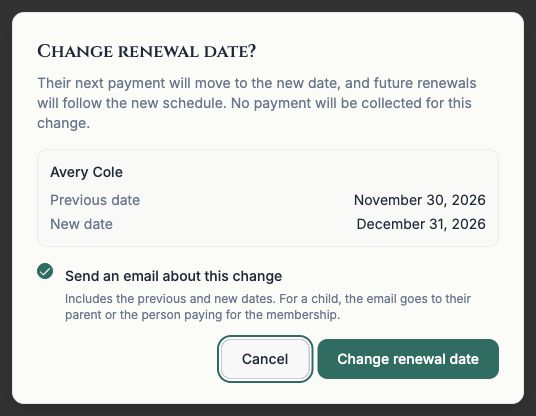
- Select the intended date and review the old and new dates in the confirmation.
- Read the billing explanation: the next payment moves to the new date and future renewals follow the new schedule. The date change itself does not collect a payment.
- Choose whether to email the member, parent, or payer as shown, then confirm and check the resulting renewal date.
What it looks like
After you finish
A successful change updates the eligible subscription's renewal schedule, rather than merely changing an organizer's display label.