Go to the right place
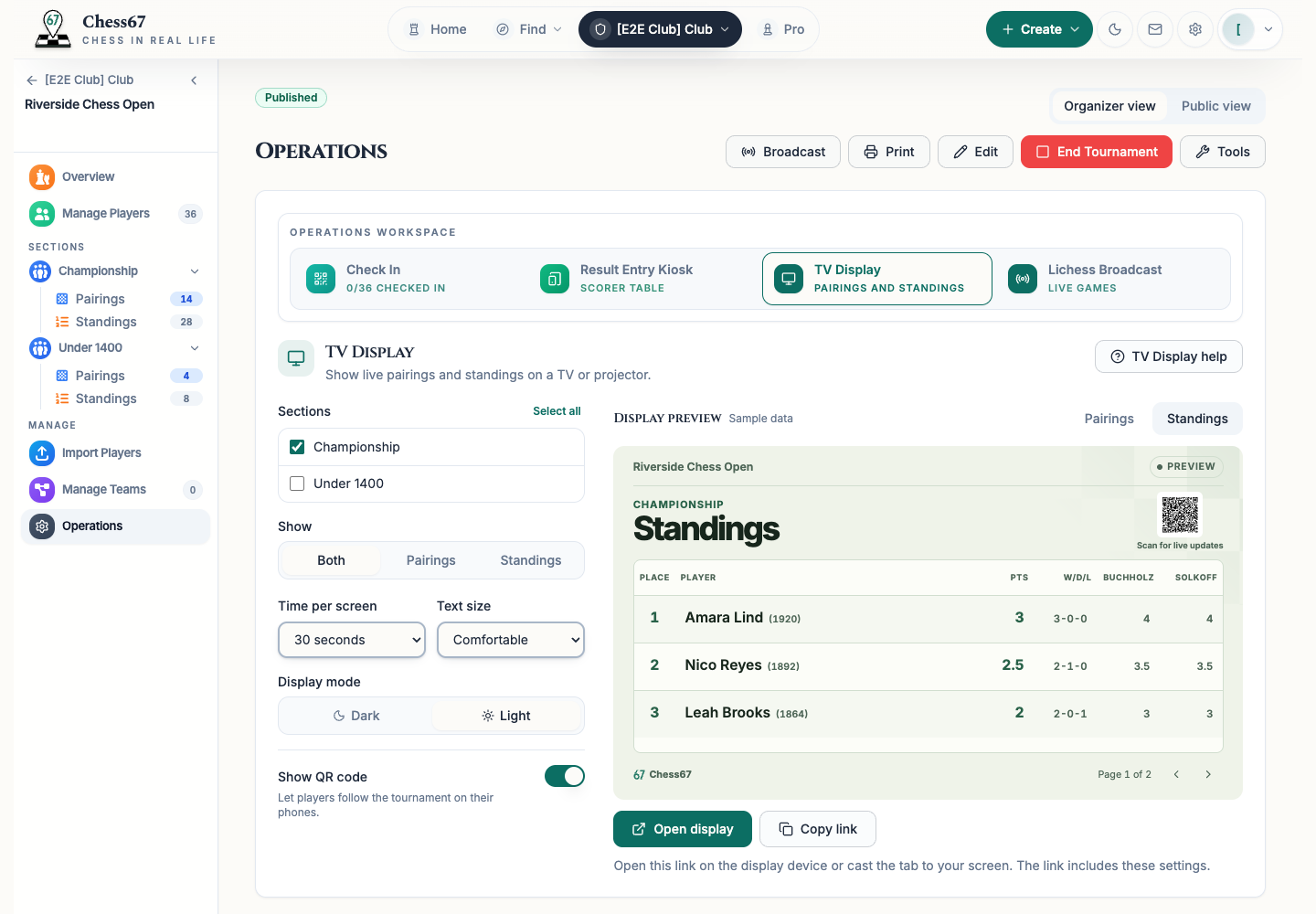
Open Club Admin and select your club. Choose Tournaments, find your tournament, and open Live Dashboard → Operations → TV Display.
Before you start
Publish the tournament and make it public. The display device needs an internet connection and a browser, or you can cast a browser tab to it.
Step by step
- In Sections, choose one or more sections. The first visible section is selected when you open setup.
- Under Show, choose Pairings, Standings, or Both. The default is Both, with 30 seconds per screen. Change Time per screen if needed, or choose Manual to use the page controls yourself.
- Choose a text size. Light is the default under Display mode; choose Dark if it’s easier to read in your room. Leave Show QR code on if you want players to open the live tournament on their phones.
- Check the sample preview. Use Open display to see your tournament, or Copy link and open it on the display device. You can also cast that browser tab. Use Full screen if your browser offers it.
- Leave the display open while you run the tournament. It automatically shows more pages for long lists, picks up published rounds, and updates standings as results come in.
What it looks like
After you finish
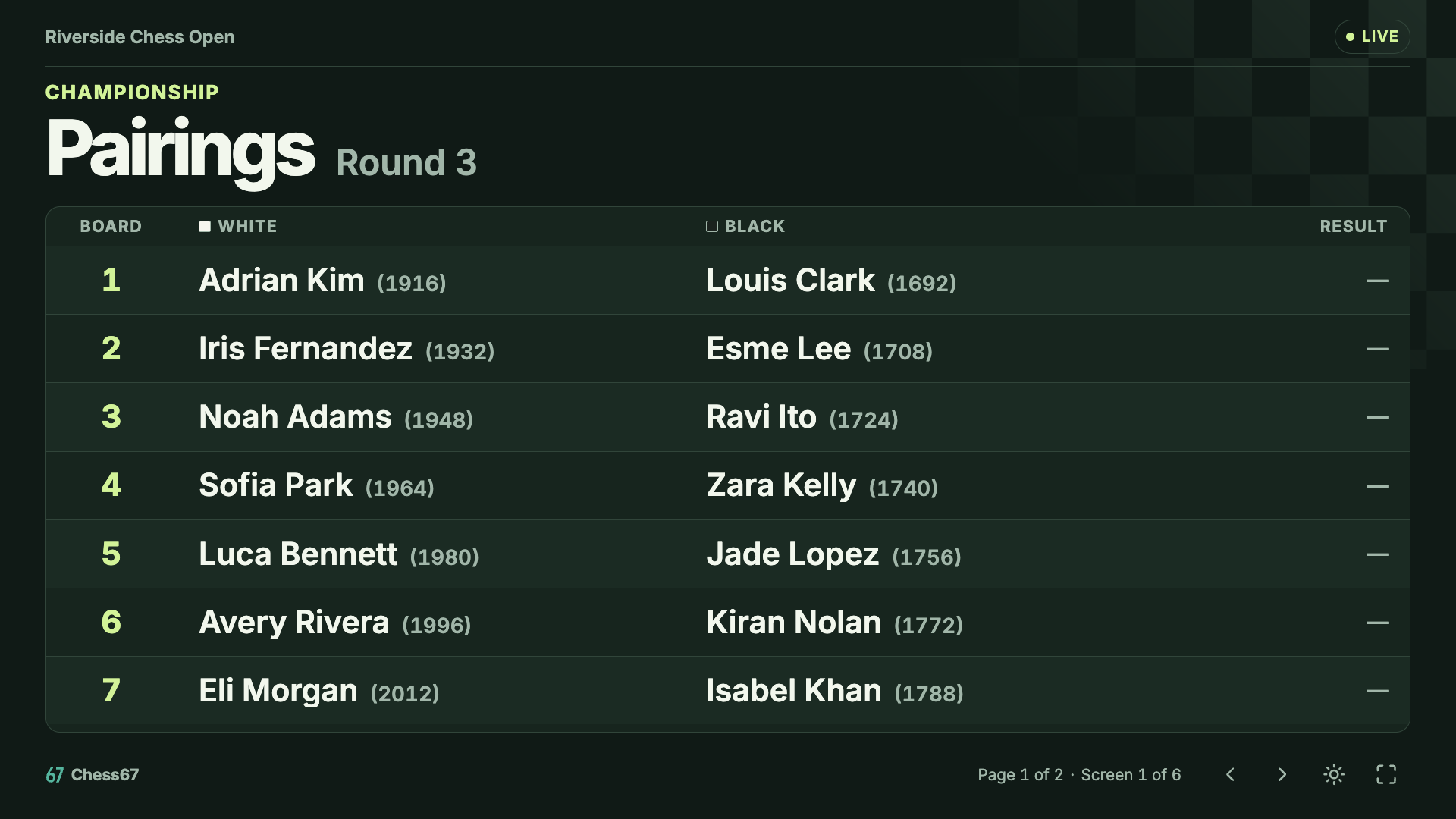
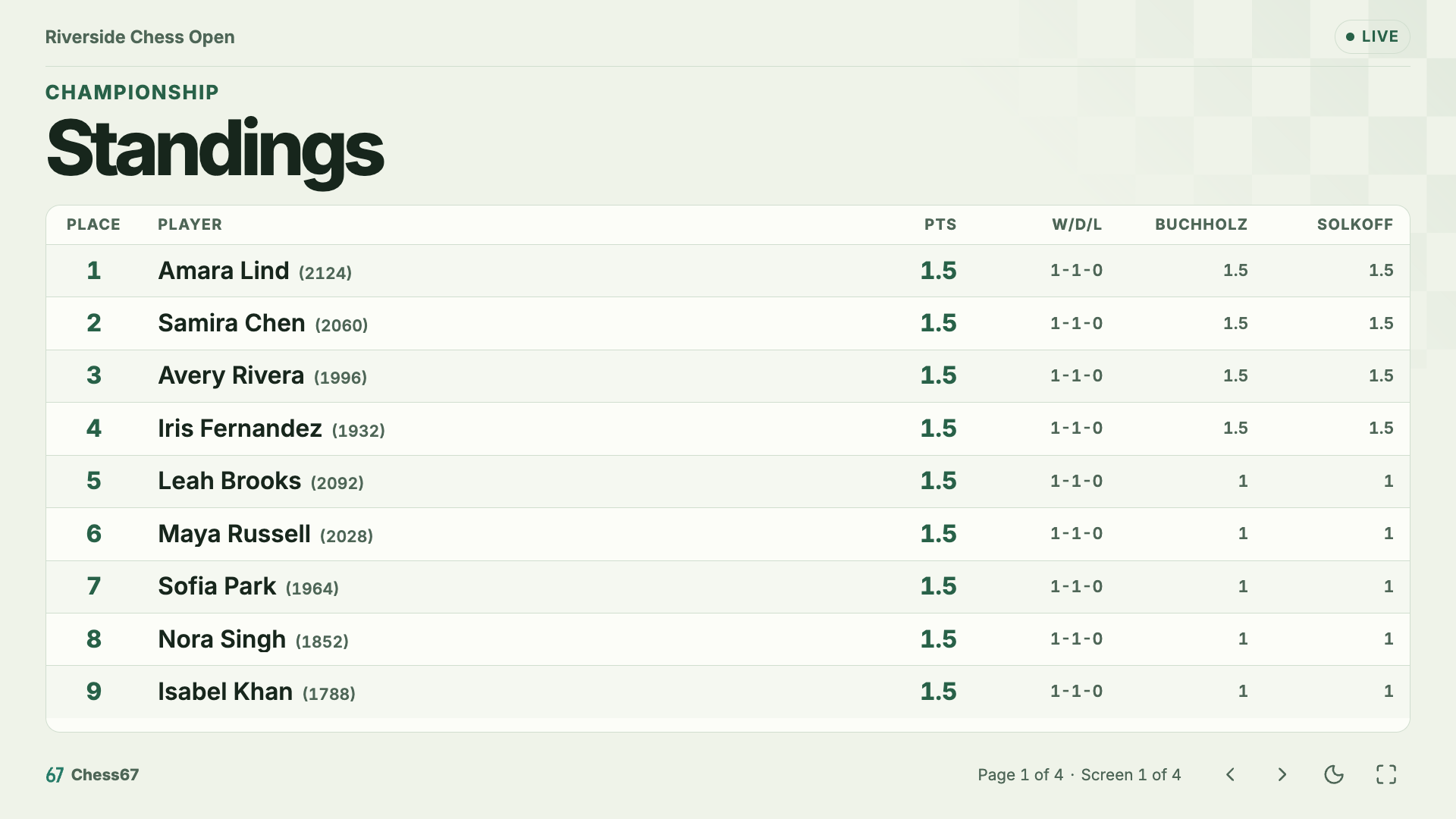
Players can read the board assignments and standings without signing in. Each copied link includes its settings, so you can set up different screens for different sections.
Pairings and standings show saved tournament ratings when available. Standings use the section’s saved columns and order. If the columns don’t fit, the display shows them on more pages and repeats the place and player or team name.
For round robin and quads, the display follows the round in play when the full schedule is published in advance. Team sections show matches and team standings.
To switch between Light and Dark on an open display, use the sun or moon button at the bottom of the screen. To change other settings, go back to setup and open or copy the new link.