Go to the right place
Step by step
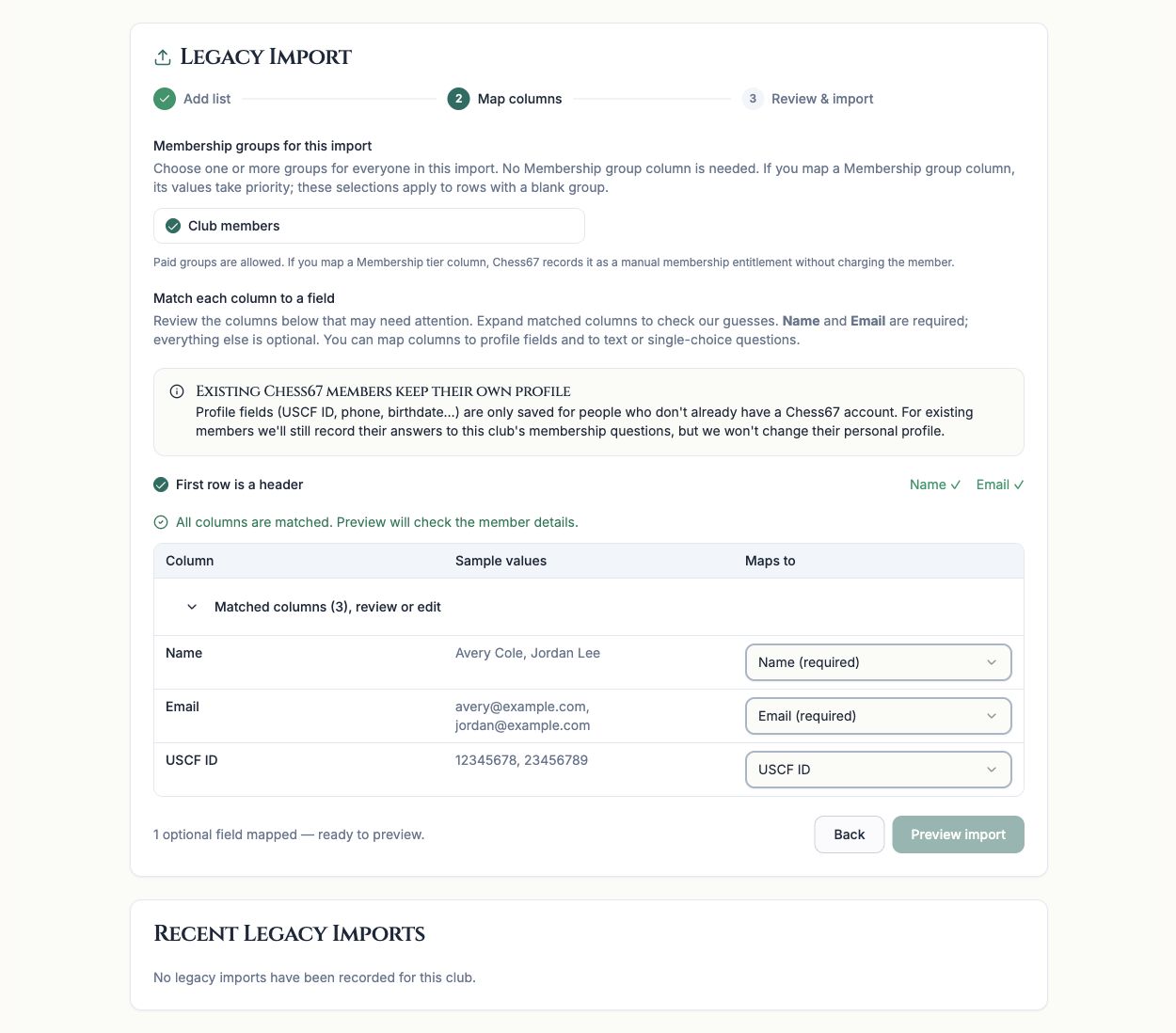
- Paste or upload your roster in the member import tools, then open Map columns.
- Review the detected header row and map the name and email columns to the right fields.
- Map optional columns to supported profile details, group names, tier names, group expiration dates, or a specific group's question. Ignore columns you do not want imported.
- Where the mapper asks you to match values, choose the existing group, tier, or allowed question answer that the spreadsheet value should represent.
- Review the resulting row preview, including extra columns, before choosing Preview import. Correct the mapping when a value appears under the wrong field.
What it looks like
After you finish
The preview uses reviewed field and value mappings rather than assuming every spreadsheet heading or group name matches the club configuration.