Go to the right place
Step by step
- Open the class page and choose Homework. If more than one family member is enrolled, choose the student’s name. A parent can hand in work for their child. If you also teach the class, look for Family homework or My homework.
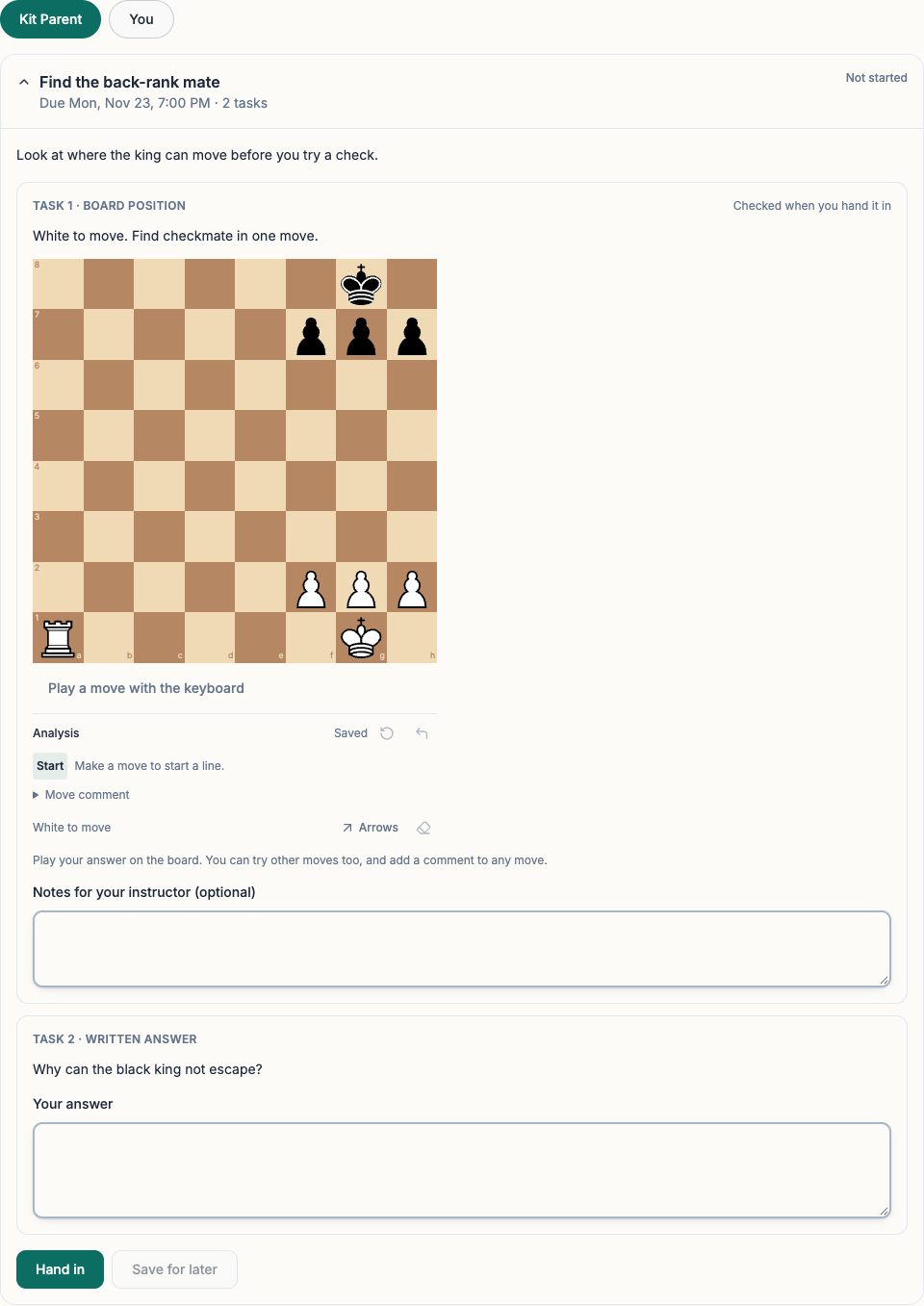
- Open the assignment to see its due date and instructions. For a board task, play your answer on the chessboard. For a written question, type in Your answer. For a game task, paste a link to the game or paste the game moves as PGN.
- Choose Save for later if you want to finish another time. When the work is ready, choose Hand in. For tasks the instructor set up to check automatically, the result appears after you hand it in.
- If you need to change work you’ve handed in, choose Take back to change it while that button is available. Make the changes and hand it in again.
- Reopen the assignment to read your instructor’s comments. If the instructor returned it for changes, read the feedback, update your work, and choose Hand in again.
What it looks like
After you finish
Your instructor can review the submitted answers. You’ll see any feedback on the same assignment.