Go to the right place
Before you start
Sign in with permission to manage the club's payments. Have the payer's name and the event, tournament, product, or group ready.
Step by step
- Open your club's Admin area. For an event or tournament, open its registrations and select the person to see their payment details.
- For a store purchase, open Store and its purchases. For a membership payment, open Groups, choose the group, and open Payments. You can also find payments under Payments → Transactions and open the order details.
- Check the payer, purchase, currency, amount paid, and any earlier refunds. Choose Refund on the payment you want to return.
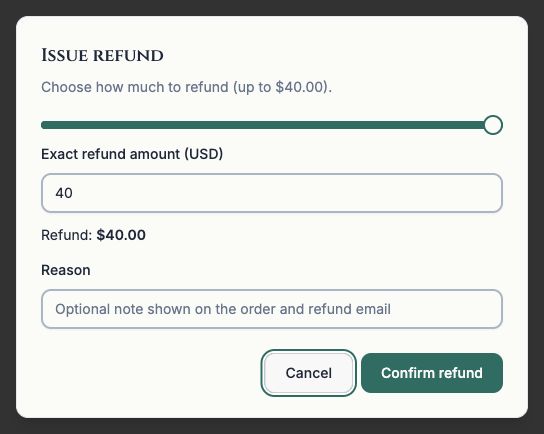
- Enter the exact amount or use the refund slider. The maximum shown is the amount still available to refund. Add a reason if useful; the reason can appear on the order and refund email.
- For a membership payment, choose Refund only to keep access and renewal unchanged, or Refund and end linked memberships to end access and the linked subscription. Read the warning about other family members before continuing.
- Review the details and choose Confirm refund. Wait for the result, then check the updated payment details before leaving the page.
What it looks like
After you finish
A successful refund updates the payment record. A partial refund leaves the unrefunded amount on the order; the payer's bank or payment service controls when the money appears.
A refund and a withdrawal are separate actions. Check the person's registration after issuing a refund; do not assume a partial refund removes their place.
Ending linked memberships is immediate and can affect every family or group membership on the same subscription. Refund only does not stop automatic renewal.