Go to the right place
Open Club Admin. Choose Classes, open the current class, and look for Next block in Settings.
Before you start
A block is one run of a class, such as four Saturday lessons. People sign up for each block separately. You can prepare the next block while you are still running the current one.
Step by step
- On the current class, turn on Let families stay enrolled for the next block. Ask returning families to select the option on their class page. The current block’s Settings shows who has asked to return.
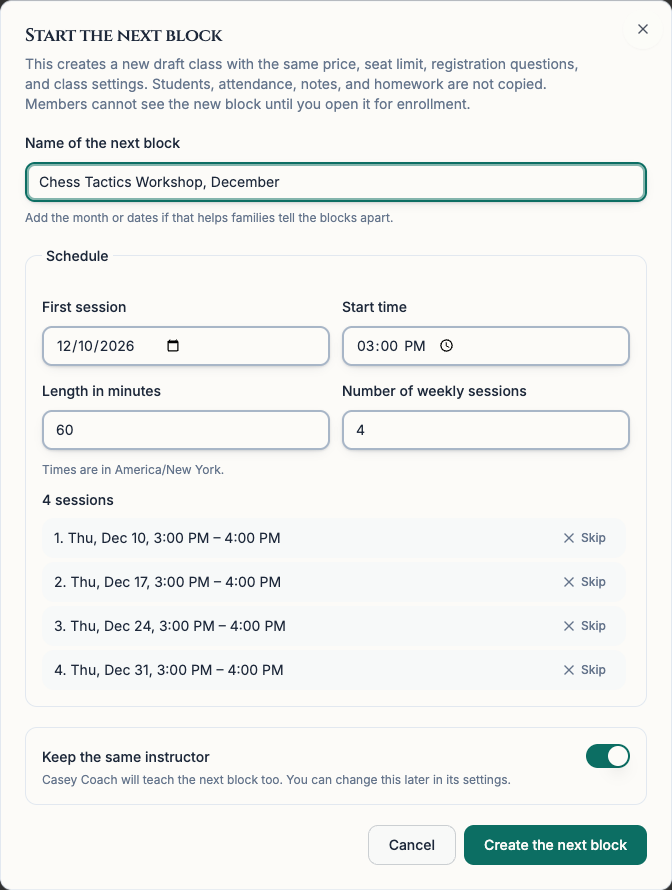
- Choose Start the next block. Enter a name that helps families tell the blocks apart, like Beginner Tactics · January. Check the suggested dates and decide whether to keep the instructors who already accepted. Choose Create the next block.
- Review the new draft’s dates, price, seat limit, and registration questions. Chess67 copies class settings. The new block has its own roster, attendance, and homework.
- On the new block’s Settings, choose Open for enrollment. If returning students have asked for places, select who should get one and choose Open and save places. If the block is already open, use Save their places instead.
- Check Places saved in the new block’s Settings. If a student cannot return, choose Release beside their name. Chess67 emails the family and frees their seat.
What it looks like
After you finish
A saved place holds a seat for that student. The family gets an email to finish sign-up. If the family has set up automatic payment and has a card ready, Chess67 schedules the charge and signs the student up after it succeeds.
A family can also give up its saved place. A held seat is available only to that student until the family signs up or someone releases it.