Go to the right place
Open Club Admin. Choose Classes, select the class, then open Settings → Edit registration and dates.
Before you start
For online payments, connect a payment account that can take payments in your class currency. Set up pricing while the class is still a draft.
Step by step
- In the editor, choose Registration. Set the Registration cap under Capacity if you have a seat limit. Turn on Allow waitlist if you want families to request a spot after registration fills up.
- Under Ask custom questions, add anything you need to know at sign-up, such as the student’s chess experience. Mark a question required only if every family needs to answer it.
- For a paid class, open Payments and turn on Enable Payments. Choose Require online payment before registration if families must pay to finish signing up. Choose Allow registration now, collect payment later if they can sign up while the fee is still due.
- Choose Add admission and enter the class fee. For a free class, leave payments off. Choose Update Event to save.
- Return to the class’s Settings. To let enrolled students pick meetings, turn on Let students pick single sessions under How the class meets, then choose Save. Families can use Change sessions after enrolling. Each meeting has its own seat count.
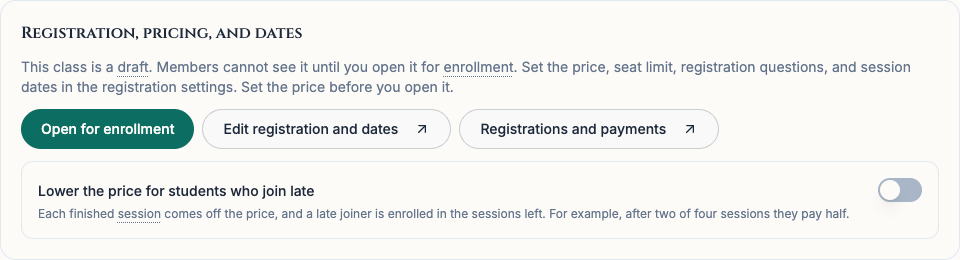
- If you want new students to pay for only the meetings still to come, turn on Lower the price for students who join late. For example, after two of four equal sessions have finished, someone new pays half the required class fee and is enrolled in the last two sessions.
- Check the dates, price, and who can join. On the class Settings tab, choose Open for enrollment. Open Overview, copy the class page link, and share it with families. Use Settings → Registrations and payments and choose Show registrations to review sign-ups.
What it looks like
After you finish
Families can find the open class under Classes and on the club calendar. They can see the registration options and price before they sign up.
Changing a student’s selected sessions does not change what they paid. If you offer a separate drop-in price, set up the price in the registration editor and make the terms clear in the class description.
The late-join discount applies to required payment items after a session finishes. Optional items, like a camp shirt, keep their price.