Go to the right place
Open Club Admin. Choose Classes, open the class, and select Settings. Use Edit registration and dates for the schedule or Registrations and payments to contact participants.
Before you start
You need permission to manage the class. Keep the details of the original and replacement dates handy if families have already registered.
Step by step
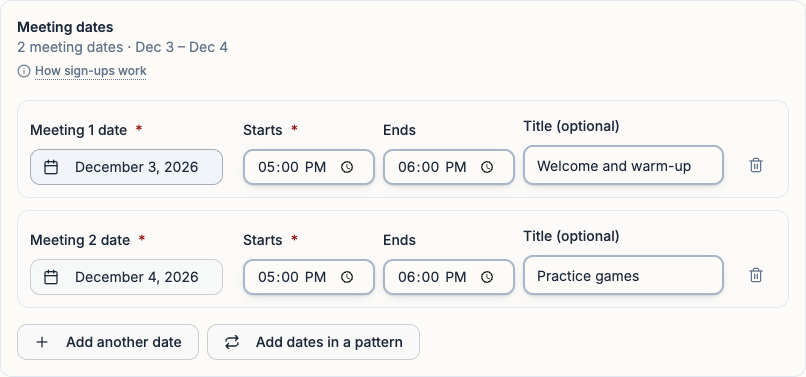
- To change a date or location, choose Edit registration and dates → Details. Edit the location or find the meeting under Meeting dates. For a makeup session, choose Add another date. Check the date, start time, and end time, then choose Update Event.
- To change the video meeting link, go to Settings → How the class meets, update the link, and choose Save. Enrolled students, their parents, and instructors can use the link on the class page.
- To tell families about a schedule change, go to Settings → Registrations and payments. Under Organizer tools, choose Email participants. Include the original date, the new date and time, and where students should go.
- To cancel the whole class, open Settings → Edit registration and dates → Advanced and choose Delete event to open the review. Select Keep registrations and cancel when that option appears. Leave Notify registered users checked if you want Chess67 to send the cancellation, then choose Cancel event. For an empty draft, the review may only offer Delete event. Close the review to keep the draft, or delete it if you no longer need it.
- If you owe families a refund, open the registration and payment records and handle the refund separately. Confirm the refund amount and payment before sending it.
What it looks like
After you finish
Families can check the updated schedule on the class page. A cancelled class closes to new registrations and retains its history for organizers and enrolled families.
For a single missed meeting, add a makeup date and tell families which date it replaces. To keep an attendance record, leave any session with saved attendance on the schedule.