Go to the right place
Open the class and choose Homework. If someone in your family is enrolled, the instructor’s tab is called Set homework.
Before you start
Sign in as a class organizer or as an instructor who has accepted the invitation.
Step by step
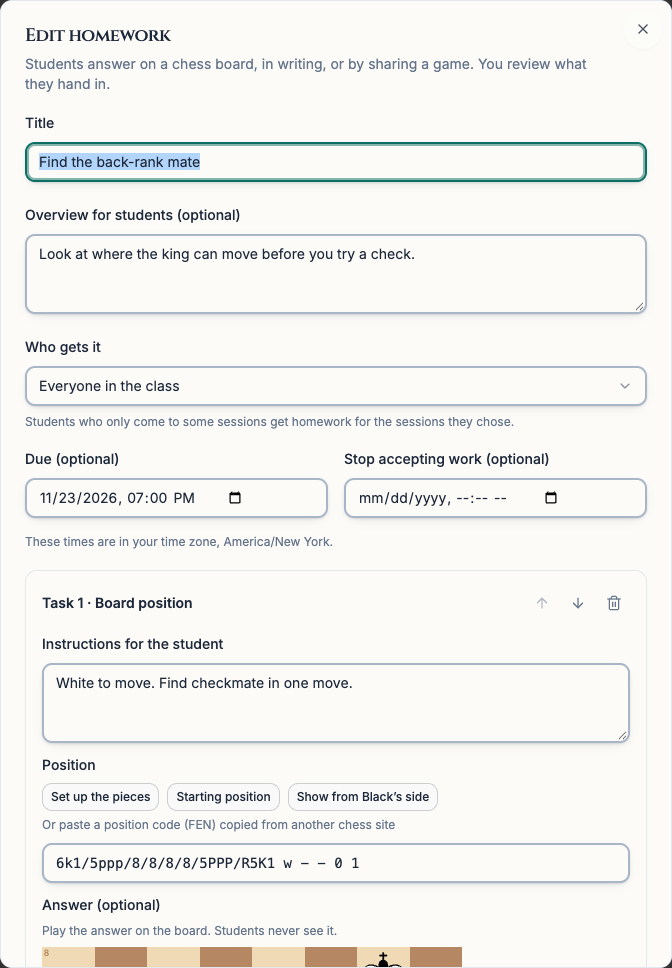
- Choose New homework and enter a title. Add an optional overview to explain what students will practice.
- Check Who gets it. Choose Everyone in the class or the students enrolled in one session. Due shows when work is considered late. Stop accepting work sets a final cutoff. The form shows the time zone used for these fields.
- Add one or more tasks and fill in Instructions for the student on each one. Written answer lets students type a response. Board position lets them play moves on a board. In a Game task, students can paste game moves in PGN format or share a Chess.com or Lichess game link.
- For a Board position task, choose Set up the pieces or Starting position, or paste a position code (FEN). To check moves automatically, play the answer on the answer board and select Check answers automatically. Chess67 checks the first line you played against the start of the student’s answer.
- Choose Save as draft to keep working on it privately or Give to students to post it. Adult students and parents of enrolled children get a Chess67 notification when homework is posted for them.
- To see what students handed in, open Homework or Set homework again. Expand an assignment and choose Review beside a student. Read the written answer, step through their moves, or open the game they shared.
- Enter any Comments for the student. Choose Mark as reviewed to finish, or add instructions and choose Send back for changes to let the student try again. Check that Stop accepting work still allows time for a new submission.
What it looks like
After you finish
You can see who has handed in work and who still needs a review. Students can open the assignment to read your feedback.
The editor starts with a Board position task. If you only want a written answer or a game, add that task first, then remove the board task.
The answer line you enter for automatic checking stays private. You can still give feedback on a student’s line, including a different solution you want to accept.
Once a task has answers, its instructions and position are locked. Add a fresh task or assignment if students need a different position.