Go to the right place
Open your club page, choose Classes, and open the class. You can also use the class link from your instructor invitation.
Before you start
Sign in as a class organizer or as an instructor who has accepted the invitation.
Step by step
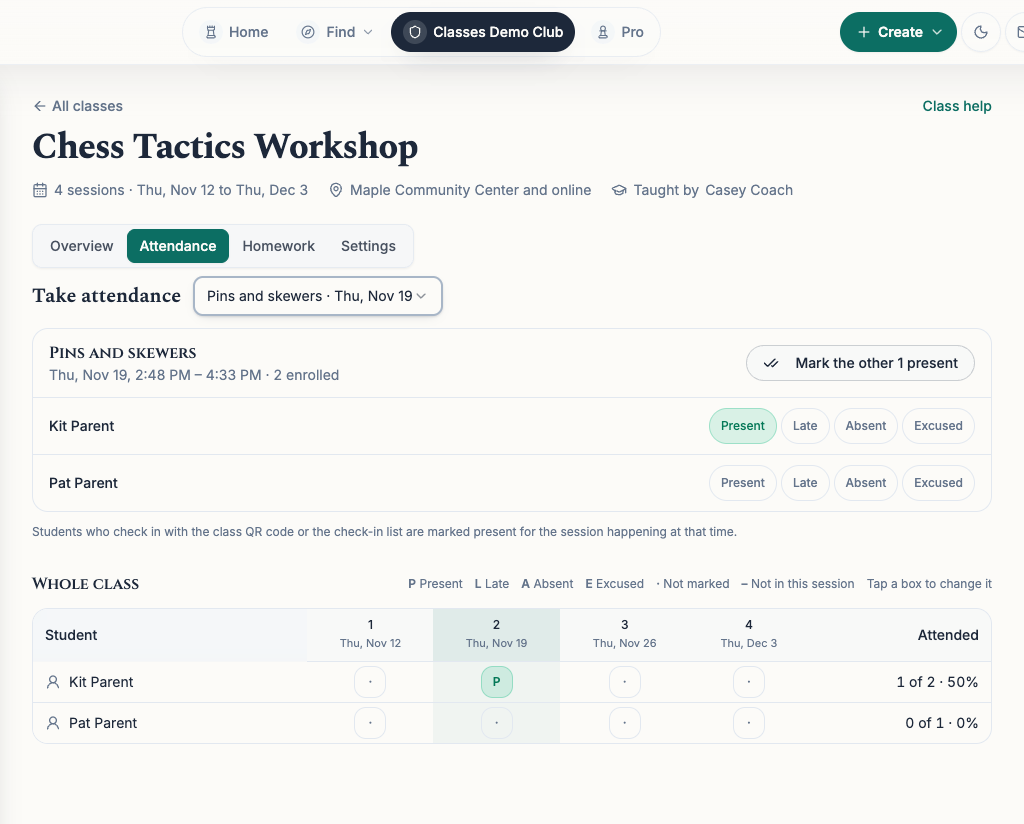
- Open the class and select Attendance. Use the Session menu to choose the date you’re taking attendance for.
- Choose Present, Late, Absent, or Excused beside each student. Each choice saves as you go. To clear a mark, select the same choice again.
- If most students are present, mark any exceptions first. Then use Mark all present or Mark the other students present, depending on the button shown. The button fills in blank marks for students enrolled in that session.
- To correct an earlier session, choose its date and change the mark. You can also select a box in Whole class to cycle through the marks. A dot means the student is enrolled for that date and has no mark yet.
- To correct which dates a student is booked for, select their name. Under Sessions, choose All sessions or Pick sessions, select the dates if needed, then choose Save sessions.
- To leave a note, select the student’s name. Use Note for the student to share it on their class page. For a child, the field is called Note for the student and their parents. Use Private note for class staff for an internal note.
- Choose Save note below the field you edited. To remove a note, clear the field and save it again.
What it looks like
After you finish
The roster shows marks by session. Students and their parents see their own attendance and shared notes on the class page. Private notes stay visible to the class instructors and club organizers.
A class QR code or check-in list marks a student present for the session happening at the time of check-in.
Present and Late count as attended. Excused sessions are left out of the percentage. A blank mark for a booked session that has ended can lower the percentage, so check the earlier dates before sharing it.
Changing session dates for an enrolled student leaves their original payment in place.