Go to the right place
Open your club page, choose Classes, and open the class. Choose Overview to see the session list.
Before you start
Sign in as a class organizer or accepted instructor. If you’re using video, have a meeting link from your video service ready. The organizer can save the link.
Step by step
- In the class’s Settings, an organizer can choose Online or In person and online under How the class meets. Paste the Video meeting link and choose Save.
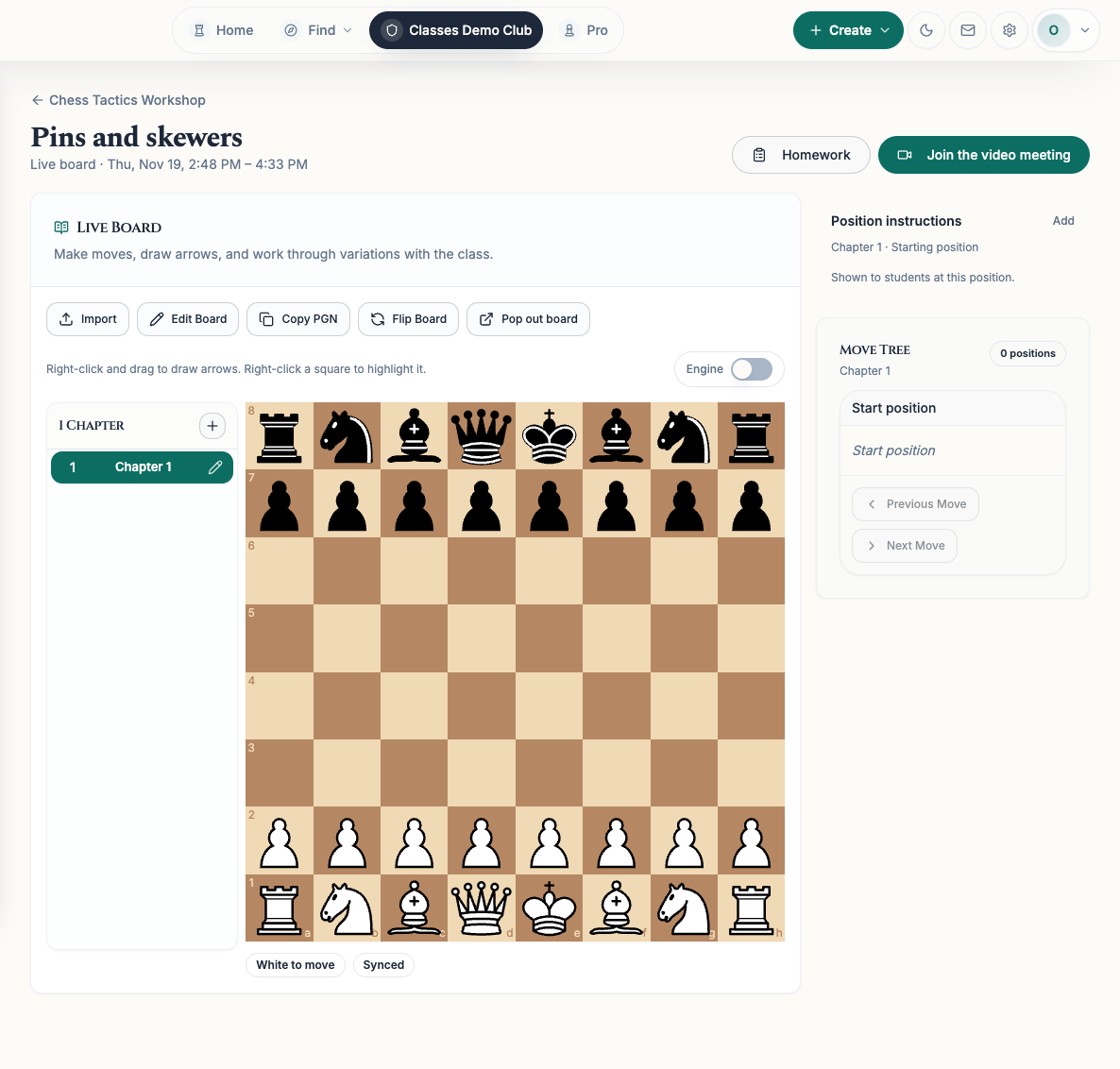
- On the class’s Overview, find the date under Sessions and select Open live board. Use Join the video meeting to open your video call in another tab. Keep the Chess67 board open alongside the call.
- Play moves on the live board so students who are following can see them. On a mouse or trackpad, right-click and drag to draw an arrow. Right-click a square to highlight it.
- Use Create chapter (+) to keep a separate example. Choose Edit Board to set up pieces. Edit Board replaces the current chapter’s position and moves, so choose the chapter you want first.
- Use Import to add a new chapter from a position code (FEN), game moves (PGN), or a public Lichess game link. For Chess.com, enter a username, optionally choose a month, select Find games, and pick a finished game. Choose Show on the board to share the result.
- Switch chapters or select earlier moves as you teach. Students can review the moves or use Try moves yourself on their own board. Ask them to choose Back to the instructor’s board when you’re ready to continue together.
What it looks like
After you finish
Students following the instructor see the shared board for that session. The session keeps its chapters and moves so you can reopen them later.